The Nexus Interface
The Nexus Interface
After signing in, the main workspace loads. The interface is organized into five key areas:
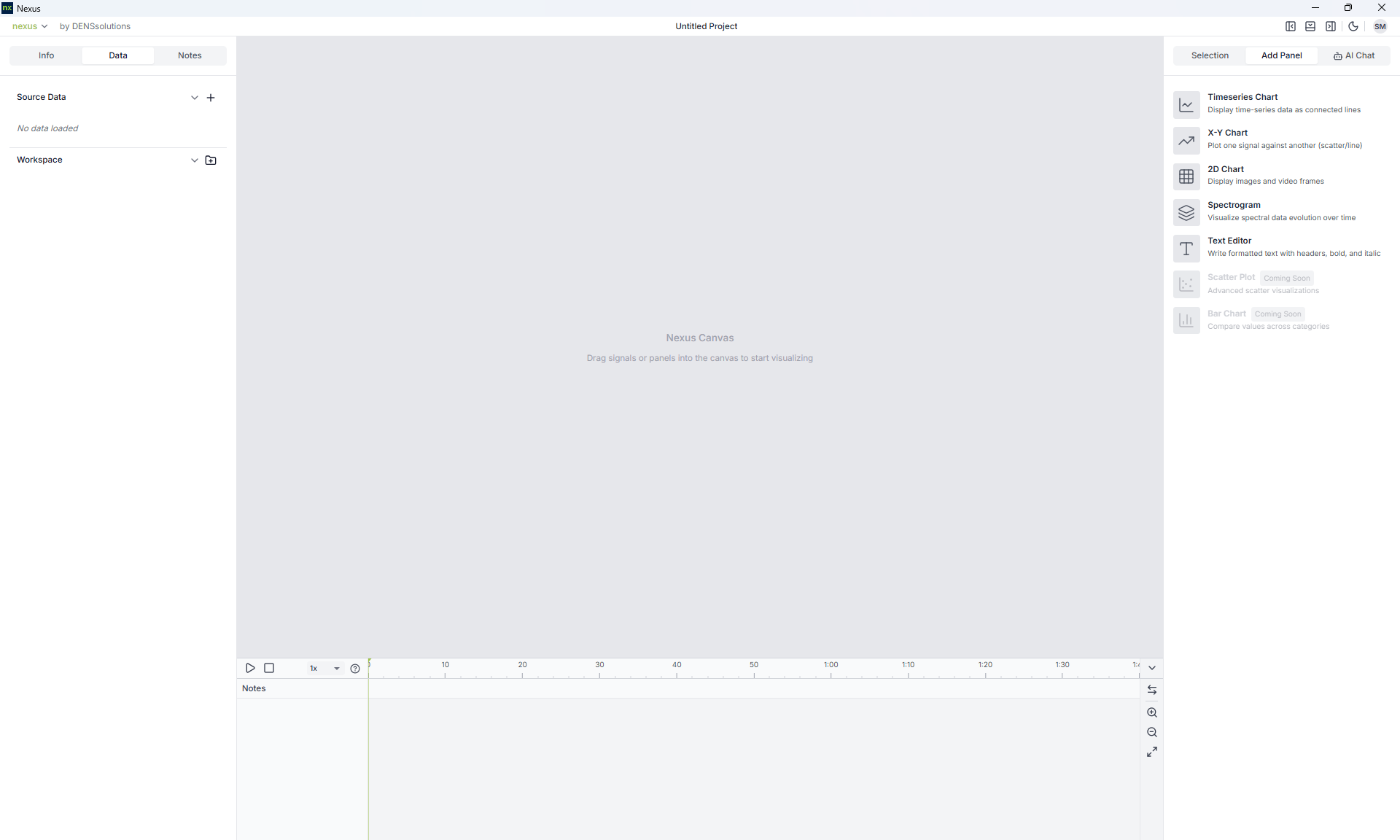
- Header bar — access project actions, toggle menus, switch themes, and manage your account
- Left menu — browse loaded files (Data tab), view project details (Info tab), and manage timeline notes (Notes tab)
- Central canvas — your main working area where visualization panels are arranged side by side or stacked
- Right menu — view settings for the selected panel (Selection tab) or create new panels (Add Panel tab)
- Timeline — playback controls, scrubber, signal sparklines, and notes track at the bottom of the window
All panels stay synchronized with the timeline. Scrubbing the timeline updates every panel — images, graphs, and notes — to the same moment in time.
You can hide the left and right menus using the toggle buttons in the header bar to maximize your canvas space.
Switching Themes
Click the theme toggle button in the header bar to switch between dark and light mode. Nexus defaults to dark mode.
About Nexus
To view application information, click the nexus menu in the top-left corner and select About Nexus. The About window shows the current version number, links to the documentation site and denssolutions.com, and copyright information.
Continue to Loading and Visualizing Data