Installing Nexus
System Requirements
| Requirement | Minimum | Recommended |
|---|---|---|
| Operating System | Windows 10 (64-bit) | Windows 11 (64-bit) |
| RAM | 4 GB | 8 GB or more |
| Disk Space | 500 MB for installation | Additional space for datasets |
| Display | 1024×768 | 1920×1080 or higher |
| Web Browser | Any modern browser (for sign-in) | - |
Nexus launches your default web browser during sign-in via OAuth. No browser extensions or plugins are required.
Downloading Nexus
Nexus is distributed as a Windows MSI installer.
The installer file follows this naming pattern: Nexus_2.x.x_x64_en-US.msi
Installing on Windows
- Locate the downloaded
.msifile and double-click to launch the installer - Follow the on-screen prompts - the default installation settings work for most users
- Click Install to begin the installation
- Once complete, click Finish to close the installer
Nexus will be available in your Start menu after installation.
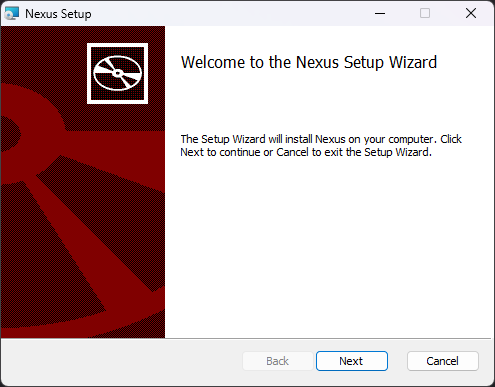
No administrator privileges are needed to run Nexus after installation. The installer handles all required setup automatically.
Microsoft Defender SmartScreen
When running the installer for the first time, Windows may show a Microsoft Defender SmartScreen warning saying “Windows protected your PC”. This is normal for newly released software that has not yet built up a reputation with Microsoft.
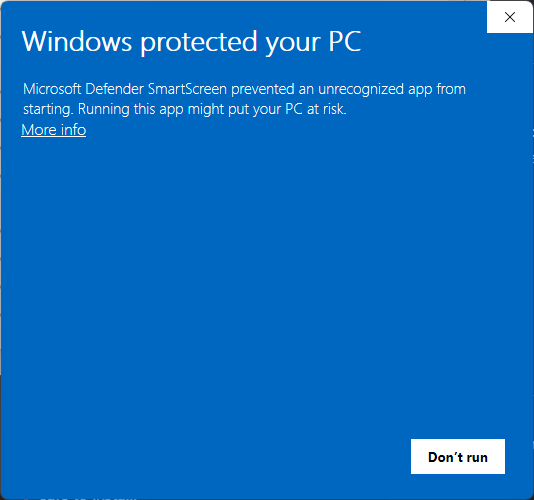
To proceed with the installation:
- Click More info on the SmartScreen dialog
- Verify the publisher information shown
- Click Run anyway to continue
This warning appears because the installer is new and has not yet been seen by enough users for Microsoft to automatically trust it. The Nexus installer is digitally signed by DENSsolutions and is safe to install.
Automatic Updates
Nexus checks for updates automatically each time you launch the application. When a new version is available, a notification appears in the bottom-right corner of the window.
The update notification shows:
- “Update Available” with the new version number
- Install Now - downloads and installs the update immediately; Nexus will restart
- Later - dismisses the notification; you’ll be reminded on your next launch
Updates are digitally signed and verified automatically. You do not need to download anything manually - Nexus handles the entire update process.
Signing In
When you open Nexus for the first time, the Sign in to Nexus screen appears.
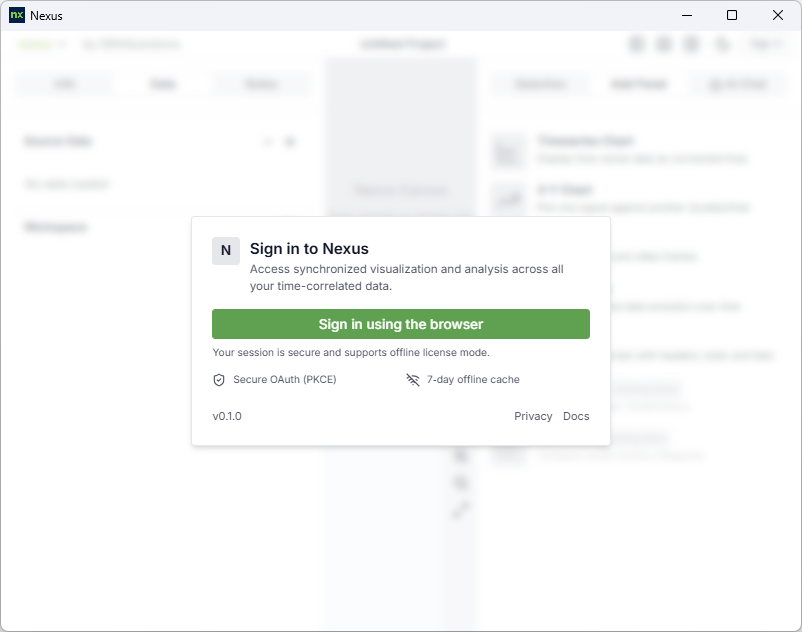
To sign in:
- Click Sign in using the browser
- Your default web browser opens to the DENSsolutions authentication page
- Enter your credentials (or create an account if you’re new)
- After successful authentication, the browser shows a confirmation message - you can close the browser tab
- Nexus automatically detects the sign-in and loads the main interface
While authentication is in progress, the button changes to Signing in… with a loading indicator.
After your first sign-in, Nexus remembers your session. You won’t need to sign in again for up to 7 days, even when offline. After 7 days without a network connection, Nexus will ask you to sign in again.
Nexus uses OAuth 2.0 with PKCE - an industry-standard security protocol. Your password is never stored by the application.