Settings
The Settings dialog holds the app-wide settings: where your script libraries live, what Kelvin may read, your account, the installed version and the privacy switches.
Opening Settings
- Click the nexus menu in the top-left corner and choose Settings, or
- press Ctrl+,.
The pages are listed on the left, grouped under Application, Account and Help. Every change applies as soon as you make it, so there is no Save or OK button; close the dialog when you are done.
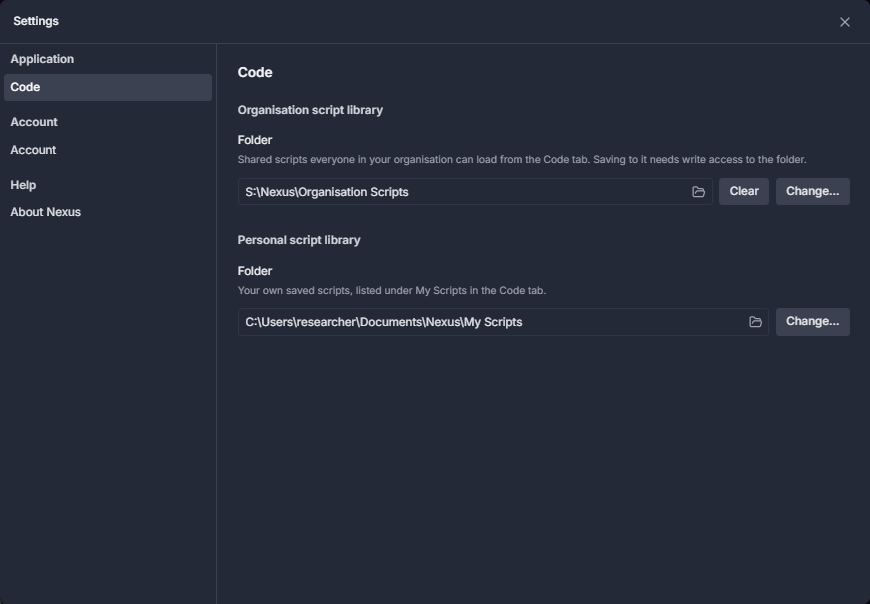
Code
Where Nexus looks for saved Python scripts. Each library has a Folder field showing the current path, with a folder icon at its right end that opens the folder in Explorer (Show in Explorer).
Organisation script library
Shared scripts everyone in your organisation can load from the Code tab, listed there under Organization Scripts. Point this at a shared or network folder.
- There is no default folder. Until you choose one, the field reads Not configured and the Code tab shows Choose a folder in Settings.
- Click Choose… (or Change… once a folder is set) to pick a folder.
- Clear removes the folder again.
Anyone can load scripts from the library. Saving a script to it needs write access to the folder.
Personal script library
Your own saved scripts, listed under My Scripts in the Code tab.
- By default this is
Documents\Nexus\My Scripts, created the first time it is needed. - Click Change… to use another folder, for example one that is backed up.
- Reset to default goes back to
Documents\Nexus\My Scripts.
Changing a folder does not move or copy any scripts: Nexus simply lists the .py files in the folder you choose. See Python Scripting for working with scripts.
Kelvin
| Group | Setting | What it does |
|---|---|---|
| Data | Signal data access | On or Off (default): whether Kelvin may read signal values, not only names, types, units and time ranges. Scripts always run on the real data, whatever this is set to. |
This is the same switch as the eye button in Kelvin’s message box; changing one changes the other. See Data Access and Privacy.
Where Kelvin sends your messages, and your own API keys, are set in Kelvin’s own gear panel rather than here; see Using Your Own API Key.
Account
| Group | Setting | What it shows or does |
|---|---|---|
| Profile | Name, Email | The account you are signed in with |
| License | License type | Your plan, for example Free, Pro or Lab. See Plans. |
| Connection | Online, or Offline when Nexus started from a stored session without reaching the sign-in service. See Offline Mode. | |
| My Nexus | Manage account | Open goes to the My Nexus website, where you manage your licence and subscription |
| Session | Sign out | Signs you out of Nexus on this computer. Unsaved work is kept and is there again when you sign back in. |
See Authentication for signing in and out.
About Nexus
| Group | Setting | What it shows or does |
|---|---|---|
| Version | Installed version | The exact version you are running, with its release channel |
| Help | Documentation | Open goes to this documentation site |
| Report a bug or request a feature | Open goes to the DENSsolutions service desk (see Report a Bug / Request a Feature) | |
| Send diagnostic logs | Send uploads the app’s log files to DENSsolutions so support can investigate a problem | |
| Privacy | Send usage data | On or Off: whether Nexus sends usage data to DENSsolutions |
| Privacy policy | Open goes to the Privacy Policy |
Send diagnostic logs
Pressing Send is the consent: nothing is uploaded until you press it. The logs can include file and folder names, and they are deleted within 30 days.
When the upload succeeds, the row shows a reference code, with a Copy button. Quote that reference in your support request so support can find your logs.
Send usage data
Usage data records which features you use and how often, linked to your account, so DENSsolutions can improve Nexus. It never includes your scientific data, file names, paths or text you type.
Switching it Off stops collection straight away and deletes whatever has not been sent yet. If you switch it back On in the same session, the row may say Resumes the next time Nexus starts. See section 8 of the Privacy Policy for details.
In pre-release versions of Nexus (alpha and beta), usage data is always sent: the switch stays at On and cannot be changed, and the row says Always on in pre-release versions of Nexus. Those versions exist to improve the next release.
Windows notifications
When something you started finishes while Nexus is in the background (another window has focus, or Nexus is minimised), Windows shows a notification:
| Notification | When |
|---|---|
| Loading finished / Loading failed | A file load ends. The text names the file, or the number of files. |
| Script finished / Script failed / Script stopped | A Python script run ends. |
| Export finished / Export failed | An image, chart or video export ends. A cancelled export raises none. |
| Kelvin finished / Kelvin has a question / Kelvin needs your approval | Kelvin finishes a reply, asks you for a value, or asks to run a script. |
Nothing is shown while you are looking at Nexus; the same outcome appears in the status bar instead. Notifications contain only fixed text and a file or script name, never your data or error details, because they can appear on the lock screen.
Clicking a notification brings Nexus to the front. For a script notification it also opens the script’s output, and for a Kelvin notification the Kelvin tab.
Nexus has no setting of its own for these. To turn them off, open Windows Settings > System > Notifications and switch off Nexus, or use Focus / Do not disturb.