Text Editor
Overview
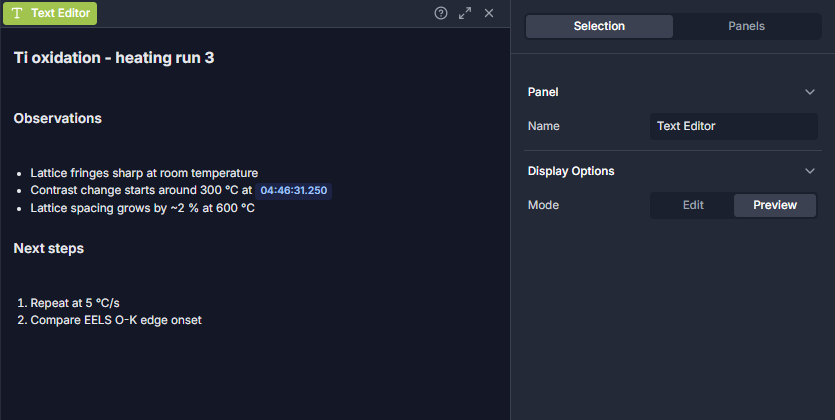
The Text Editor panel holds free-form notes next to your data: an experiment log, observations, or a summary for a colleague. It supports simple formatting and clickable timestamps that jump the timeline to a moment in the experiment.
The text is saved with the project. For notes pinned to a single moment on the timeline, see Notes instead.
Creating a Text Editor
Drag the Text button from the Panels tab onto the canvas. The new panel opens in edit mode, named Text Editor (or Text Editor 2, Text Editor 3, and so on).
Each Text Editor panel stores its text as a signal in the Workspace of the Data tab, under the panel’s name. If you close the panel the text is kept: drag that signal back onto the canvas to reopen it in a Text Editor.
To rename the text, select the panel and change Name in the Panel section of the Selection tab. The signal in the Workspace is renamed with it.
Edit and Preview
The panel has two modes. Switch between them with Mode (Edit / Preview) in the Display Options section of the Selection tab.
- Edit shows the raw text and a formatting toolbar.
- Preview shows the formatted result. Double-click the preview to go back to Edit.
A Text Editor reopened from a saved signal starts in Preview.
Formatting
Type the formatting yourself, or select text and use the toolbar buttons:
| Toolbar button | Syntax | Result |
|---|---|---|
| Header 1 / Header 2 / Header 3 | # Title, ## Title, ### Title at the start of a line |
A heading |
| Bold | **text** |
text |
| Italic | *text* |
text |
| Bullet List | - item at the start of a line |
A bulleted list |
| Numbered List | 1. item at the start of a line |
A numbered list |
With several lines selected, the list buttons turn each non-empty line into a list item.
The ? icon in the panel header shows this syntax as a quick reference.
Timestamps
Click Insert Timestamp (clock icon) in the toolbar to insert the current timeline position at the cursor. It is written as @[HH:MM:SS.mmm|seconds], for example @[00:01:23.500|83.5]. On a timeline with real clock times, the label is the time of day as the status bar shows it, for example @[04:46:31.250|1761885991.25].
In Preview, a timestamp shows as a link. Click it to move the timeline cursor to that time, so every panel jumps to the moment the note refers to.